

How to Create a GBP? A Simple Guide for Beginners
If you run a local business, showing up when someone searches “near me” can make or break your visibility. Every day, millions of people turn to Google to find restaurants, salons, repair shops, and service providers close to them, and most of those searches happen without ever visiting a business website first. That’s where a Google Business Profile (GBP) comes in. It’s one of the most powerful – and completely free – tools for getting your business found on Google Search and Google Maps, right where local customers are already looking.
If you’ve never set one up before, don’t worry. Many beginners assume the process is technical or time-consuming, but in reality it takes just a few minutes to get started. This guide walks you through exactly how to create a GBP, step by step, in plain, simple language – from initial setup to verification and optimization. By the end, you’ll have a fully functioning, search-ready profile designed to attract local customers and turn searches into real foot traffic, calls, and sales.
What Is a Google Business Profile (GBP)?
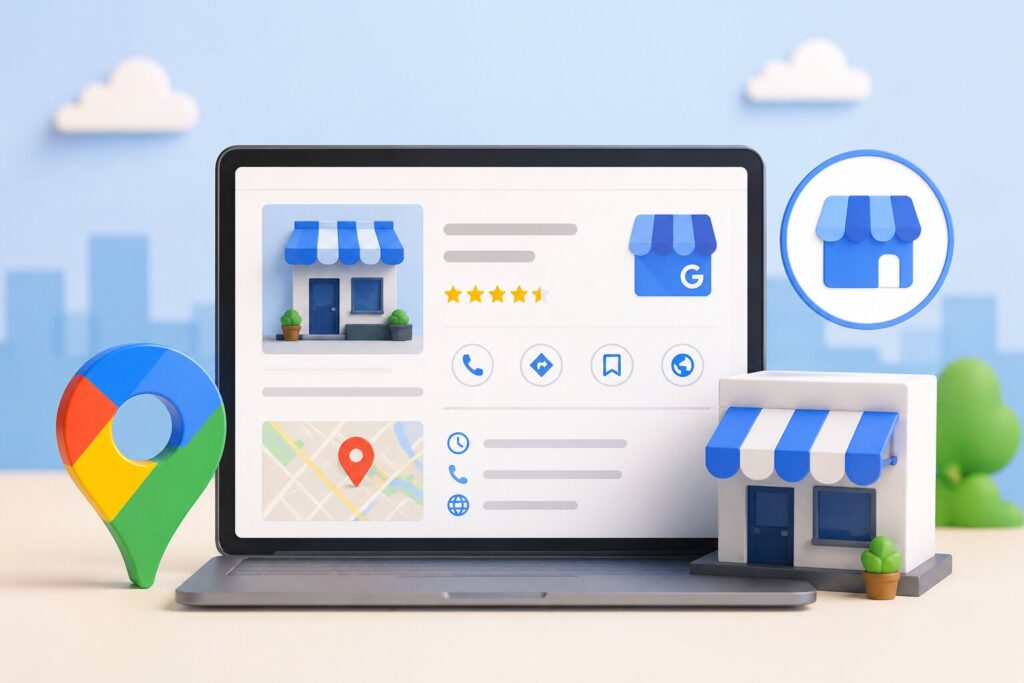
A Google Business Profile is a free listing that lets your business appear on Google Search, Google Maps, and the local “map pack” that shows up for location-based searches. It displays key information like your address, phone number, hours, reviews, photos, and website – all without requiring visitors to leave Google.
It’s important to note that GBP isn’t a replacement for your website. Think of it as your business’s storefront on Google – the first thing many potential customers see before they ever click through to your site.
You may also have heard of “Google My Business” (GMB). That’s the same product under its old name. Google rebranded it to Google Business Profile in 2021 and moved most management tools directly into Google Search and Maps, rather than a separate app.
Why Your Business Needs a GBP
Before diving into the setup process, it’s worth understanding why this free tool matters so much:
- Free local visibility. Your business can appear in local search results and Maps without paying for ads.
- Builds instant trust. Reviews, photos, and complete business details help customers feel confident before they even visit.
- Captures “near me” searches. A huge share of local searches have strong purchase intent – people searching are often ready to buy or visit.
- Direct customer actions. People can call you, get directions, visit your website, or book an appointment straight from your profile.
- Free performance insights. GBP shows you how customers find and interact with your listing, including calls, clicks, and direction requests.
In short, if you’re not on GBP, you’re likely invisible to a large chunk of local searchers – even if your website is excellent.
How to Create a GBP – Step-by-Step Guide
Here’s the full process broken down into simple, beginner-friendly steps.
Step 1: Sign In to Google Business Profile Manager
Go to google.com/business and click “Manage now.” You’ll need a Google account to continue – if you don’t already have one, create it first. It’s best to use an account tied specifically to your business rather than a personal one, especially if multiple team members will manage the listing later.
Step 2: Enter Your Business Name
Type in your business’s exact name – the one customers already know and search for. Avoid the temptation to stuff extra keywords into the name field (for example, “Sarah’s Bakery – Best Cakes Downtown”). Google’s guidelines prohibit this, and doing so can get your listing suspended.
Step 3: Choose Your Business Category
This is one of the most important steps for local SEO. Your primary category tells Google what kind of business you are and directly influences which searches you show up for.
- Pick the most specific and accurate category available (e.g., “Italian Restaurant” instead of just “Restaurant”).
- You can add secondary categories later to cover additional services you offer.
- Take your time here – category selection has a big impact on your ranking in local search results.
Step 4: Add Your Business Location
Google will ask if you have a physical location customers can visit. Depending on your business type, you have a few options:
- Storefront business: Enter your exact address so it shows on Maps.
- Service-area business (like a plumber or cleaning service): You can hide your address and instead define a service radius or list the areas you cover.
- Online-only business: You may skip location entirely, though this limits some local search features.
Make sure your address matches exactly what’s listed elsewhere online (your website, directories, social profiles). Inconsistent addresses can hurt your local SEO.
Step 5: Add Contact Details
Next, add your phone number and website URL. If you don’t have a website yet, Google can automatically generate a simple one for you using your profile information – a handy option for beginners just starting out.
Step 6: Verify Your Business
Verification proves to Google that you’re a legitimate business at the location or in the service area you claim. Common verification methods include:
- Postcard by mail (most common) – Google sends a code to your address
- Phone verification – a text or call with a code
- Email verification – for some eligible businesses
- Video verification – increasingly used for service-area businesses
- Instant verification – available if your business is already verified in Google Search Console
Verification can take anywhere from a few minutes (instant methods) to about two weeks (postcard). Until you’re verified, your profile won’t be visible publicly, so don’t skip this step.
Step 7: Complete Your Profile
Once verified, go back and fill in every remaining section – an incomplete profile ranks worse and converts fewer visitors. At minimum, add:
- Business hours, including holiday hours
- A business description that’s natural, informative, and includes relevant keywords without stuffing
- Photos and your logo – profiles with photos get significantly more engagement
- Products or services list
- Attributes like “wheelchair accessible,” “outdoor seating,” or “woman-owned,” if applicable
How to Optimize Your GBP After Creating It
Creating the profile is just step one. To actually rank and attract customers, keep it active:
- Add photos regularly. Fresh, high-quality images signal an active, trustworthy business.
- Collect and respond to reviews. Reviews are one of the strongest local ranking factors, and responding shows customers you’re engaged.
- Post updates. Use Google Posts to share offers, events, or news directly on your profile.
- Keep your NAP consistent. Your Name, Address, and Phone number should match exactly across your website, directories, and social media.
- Use the Q&A section. Proactively answer common customer questions before they’re even asked.
- Add booking links. If you take appointments or reservations, connect a booking tool directly to your profile.
Common Mistakes Beginners Make with GBP
Avoid these pitfalls when setting up and managing your profile:
- Choosing the wrong category – this can bury you in irrelevant search results.
- Inconsistent NAP information across the web, which confuses Google and hurts rankings.
- Ignoring reviews, both positive and negative.
- Leaving the profile incomplete – missing hours, photos, or descriptions reduce trust and visibility.
- Keyword stuffing the business name, which violates Google’s guidelines.
- Skipping verification, which keeps your listing invisible to searchers.
Conclusion
Setting up a Google Business Profile is one of the simplest, highest-impact things a beginner can do for their business’s online visibility – and it costs nothing but a little time. By following the steps above – signing up, choosing the right category, verifying your listing, and filling out every detail – you’ll put your business in front of local customers who are actively searching for what you offer.
Don’t let your competitors get discovered first. Start creating your Google Business Profile today and take the first step toward showing up where it matters most: right at the top of local search results.
Frequently Asked Questions (FAQ)
Is creating a Google Business Profile free?
Yes. GBP is completely free to create, verify, and manage – there’s no cost to list your business on Google Search and Maps.
How long does it take to verify a GBP?
It depends on the method. Instant or phone verification can take minutes, while postcard verification by mail typically takes one to two weeks.
Can I create a GBP without a physical address?
Yes. Service-area businesses can hide their exact address and instead define a service radius covering the regions they operate in.
What’s the difference between Google My Business and Google Business Profile?
They’re the same product. Google renamed Google My Business to Google Business Profile in 2021 and shifted management directly into Google Search and Maps instead of a standalone app.
Do I need a website to create a GBP?
No. If you don’t have one, Google can automatically generate a simple, free website using the details from your profile.
How can I rank higher on Google Maps after creating my GBP?
Complete every section of your profile, choose the right categories, gather genuine positive reviews, post updates consistently, and keep your business information accurate and consistent across the web.

About the Author
SparkLocal HQ Team
The SparkLocal HQ team helps local businesses across the US, UK and beyond get found on Google. We specialise in Google Business Profile management, reinstatement, and local SEO that drives real calls and customers.
Was this article helpful?
Keep Reading
Related Articles

Need help with your Google Business Profile?
Free audit — we'll find exactly what's holding your profile back.