

How to Create, Set Up & Get Started with Google Business Profile (GBP)
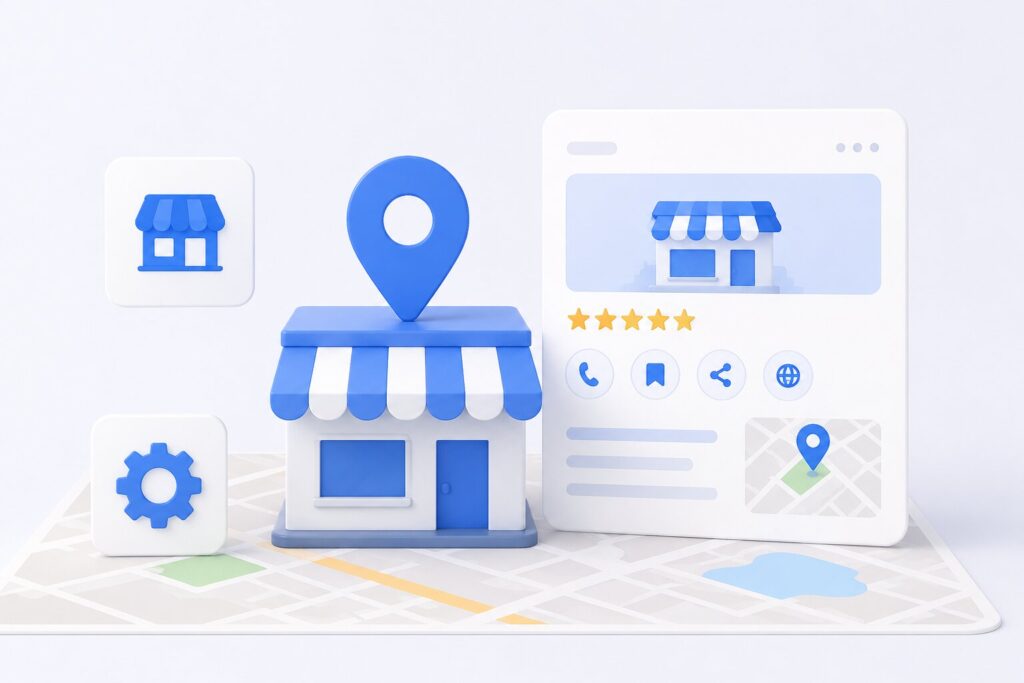
If you run a local business and you are not showing up in Google Search or Google Maps when people search for what you offer, the most likely reason is that your Google Business Profile does not exist yet, or it exists but was never verified. A Google Business Profile (GBP) is the free listing that controls how your business appears across Google Search, Google Maps, and the Local 3-Pack, the block of three map results that shows up above the regular organic listings for local searches.
This guide walks through the entire process: checking whether your business qualifies for a profile, creating and filling it out correctly, verifying it, and what to do once it goes live. Whether you are setting up your first listing or fixing a profile that was never finished, the steps below apply.
What Is a Google Business Profile?
Google Business Profile, formerly called Google My Business, is a free tool that lets you manage how your business appears on Google. Once set up and verified, it controls your business name, address, phone number, hours, category, photos, and customer reviews wherever they show up on Google. A complete, verified profile is what allows a business to appear in local search results and on Google Maps at all. Without one, you are effectively invisible in local search, no matter how good your website’s SEO is.
Is Your Business Eligible for a GBP?
Before creating a profile, confirm that your business actually qualifies. Google requires a business to have real, direct interaction with customers, either at a physical location or within a defined service area.
Generally eligible:
- Storefronts and offices with a physical address (retail stores, clinics, restaurants)
- Service-area businesses that travel to customers (plumbers, cleaners, landscapers, mobile repair)
- Home-based businesses that serve customers in person or travel to them
Generally not eligible:
- Online-only businesses with no in-person customer interaction (pure e-commerce stores)
- Rental or for-sale properties, such as vacation homes or vacant apartments
- Lead generation agents or companies that do not perform the service themselves
- Brands, organizations, or online-only entities with no direct customer-facing operation
If you run a business from home, you can still qualify. You will need to use your actual home address, since P.O. boxes and virtual offices are not permitted, but you can hide that address from public view by setting the listing up as a service-area business. If you run more than one business from the same home address, each one needs its own category, phone number, and website, and Google does not allow fictitious suite numbers to make separate listings look distinct.
Step-by-Step: How to Create Your Google Business Profile
Step 1: Create or sign in to a Google Account
Use a Google account tied to your business email domain rather than a personal Gmail address. This makes it easier to hand off management later and keeps business assets separate from personal ones.
Step 2: Search your business name first
Go to business.google.com and search your exact business name before creating anything new. Google sometimes generates a listing for a business automatically from public data, even if the owner never created one. If a listing already exists, claim it instead of creating a duplicate, since duplicate listings can hurt your local rankings and get suspended.
Step 3: Claim or create the listing
If no listing appears, select the option to add your business. Enter your business name exactly as it appears on your signage, website, and other listings elsewhere online. Do not add keywords or location terms to the name field. This is one of the most common reasons profiles get suspended.
Step 4: Choose your business category
Pick the primary category that most precisely matches your core business, then add relevant secondary categories. Category selection directly affects which searches your profile can show up for, so this is worth getting right rather than picking the broadest option available.
Step 5: Add your location details
If customers visit you in person, enter your street address. If you travel to customers instead, choose the service-area option and define your coverage by city, county, or zip code. Google still requires and verifies a real address behind the scenes for service-area businesses, it simply is not displayed publicly.
Step 6: Add contact information
Add a working phone number and your website URL. Keep this information identical to what appears on your website and any other directories you are listed in, since inconsistent name, address, and phone details across the web can weaken local rankings.
Step 7: Complete the rest of the profile
Fill in business hours, a business description (you have 750 characters, so lead with your location, what you offer, and how customers can reach you), applicable attributes (such as accessibility or amenities), and your opening date if applicable. Complete profiles perform meaningfully better in local search than incomplete ones.
Step 8: Upload your logo and cover photo
Add a clear logo and a cover photo, ideally 1024 x 575 pixels at a 16:9 aspect ratio. Avoid heavily edited or stock-looking images. Profiles with real, high-quality photos tend to get more engagement than those without.
How to Verify Your Google Business Profile
A profile is not visible in Search or Maps until it is verified. Verification confirms to Google that you are the legitimate owner or manager of the business. Depending on your business type, location, and category, Google will offer one or more of the following methods:
- Video recording: Record a short video showing your business signage, interior, and proof you have access to the location. This is now the most common method Google offers for new profiles and for profiles with a recent address change.
- Phone or text: Google sends a verification code to your business phone number.
- Email: Google sends a code to the email address associated with the profile.
- Postcard by mail: Google mails a code to your business address. This is the slowest option, often taking one to two weeks.
- Instant verification: Available automatically for some businesses that already have their website verified in Google Search Console under the same Google account.
You will not get to choose your verification method freely. Google decides which options are available based on your business type, category, and how much it already knows about your business from other public data. If a video is requested, make sure it clearly shows your signage, address details, and any equipment or tools relevant to your business, since a rejected video means resubmitting and waiting again.
Common Setup Mistakes to Avoid
- Adding keywords or location names into the business name field
- Choosing a category that is technically related but not what customers would search for
- Creating fake suite numbers to list multiple home-based businesses at one address
- Changing your business name, address, or category while verification is pending, which can reset the process
- Leaving sections like hours, description, or photos empty after verification
What to Do After Your GBP Is Verified
Verification is the starting line, not the finish line. Once your profile goes live, a few things make the biggest difference to how it performs:
- Finish every section of the profile, including attributes, services, and products, since complete profiles get substantially more visibility than partial ones.
- Set up review monitoring so you can respond to new reviews quickly.
- Publish your first Google Post and add real photos, since active profiles tend to outperform static ones.
- If you run paid campaigns, connect your profile activity to Google Ads for locally targeted campaigns.
Get Help Setting Up Your Google Business Profile
Setting up a GBP correctly the first time avoids the suspensions, delays, and lost visibility that come from getting category, verification, or naming details wrong. If you would rather have it handled for you, SparkLocal HQ sets up, verifies, and optimizes Google Business Profiles for local businesses across the US, UK, and India. Run a free audit of your current listing to see exactly where it stands before you start.
Frequently Asked Questions
Is Google Business Profile free?
Yes. Creating, verifying, and maintaining a Google Business Profile costs nothing.
How long does GBP verification take?
It depends on the method. Phone, text, and instant verification can take minutes. Video verification typically takes a few business days for Google to review. Postcard verification is the slowest, often one to two weeks.
Can I set up a GBP without a physical storefront?
Yes, if you are a service-area business that travels to customers. You still need a real address for Google’s records, but you can hide it from public view during setup.
What happens if my verification video or postcard does not arrive or gets rejected?
If a postcard has not arrived after about two weeks, you can request a new one or contact Google support for alternatives. If a video is rejected, Google will tell you it did not meet requirements, and you can record and resubmit a new one.
Can I run multiple businesses from one home address?
Yes, as long as the businesses are in genuinely different categories, and each one has its own phone number and website. Do not invent suite numbers to make listings look like separate locations.

About the Author
SparkLocal HQ Team
The SparkLocal HQ team helps local businesses across the US, UK and beyond get found on Google. We specialise in Google Business Profile management, reinstatement, and local SEO that drives real calls and customers.
Was this article helpful?
Keep Reading
Related Articles
Need help with your Google Business Profile?
Free audit — we'll find exactly what's holding your profile back.